
If you are building smart home gadgets with an ESP32 or ESP8266, there comes a time when looking at log files in the Home Assistant dashboard just isn’t enough. You want glanceable, real-world data right on your desk or wall.
Enter the SSD1306 OLED display. It’s cheap, incredibly crisp, power-efficient, and—thanks to ESPHome—can be set up in a matter of minutes without writing a single line of complex C++ code.
In this guide, we’ll walk through how to wire an SSD1306 to an ESP32, configure it in ESPHome to display the local time, and explore some creative ways to use it in your smart home.
The Hardware Setup (Wiring)
The SSD1306 typically communicates over I2C, meaning it only requires four wires to connect to your ESP32.
| SSD1306 Pin | ESP32 Pin (Default) | Description |
| GND | GND | Ground |
| VCC | 3V3 (or 5V depending on module) | Power Supply |
| SCL | GPIO22 | I2C Clock Clock |
| SDA | GPIO21 | I2C Data Line |
Note: You can use almost any GPIO pins on the ESP32 for I2C, but GPIO21 and 22 are the standard defaults.
Note: Take care that the VCC and GND for certain modules are swopped around! Connecting this the wrong way around will permanently damage the unit!
The ESPHome Configuration
To get the display up and running, we need to tell ESPHome to do three things: fetch the time from Home Assistant, download a clean font, and render the text to the screen.
Add this configuration block to your device’s YAML file:
# 1. Sync time with your Home Assistant instance
time:
  - platform: homeassistant
    id: homeassistant_time
    timezone: "Africa/Johnnesburg" # Change to your local timezone

# 2. Download a crisp font from Google Fonts
font:
  - file: "gfonts://Roboto"
    id: font_small
    size: 10
  - file: "gfonts://Roboto"
    id: font_large
    size: 26

# 3. Initialize the I2C Bus
i2c:
  sda: GPIO21
  scl: GPIO22

# 4. Configure the Display Layout
display:
  - platform: ssd1306_i2c
    model: "SSD1306 128x64"
    address: 0x3C
    lambda: |-
      # Print the Date in the top area (Centered)
      it.strftime(64, 0, id(font_small), TextAlign::TOP_CENTER, "%A, %b %d", id(homeassistant_time).now());

      # Print the Time in the main area (Centered)
      it.strftime(64, 22, id(font_large), TextAlign::TOP_CENTER, "%H:%M", id(homeassistant_time).now());
The display should output the following:
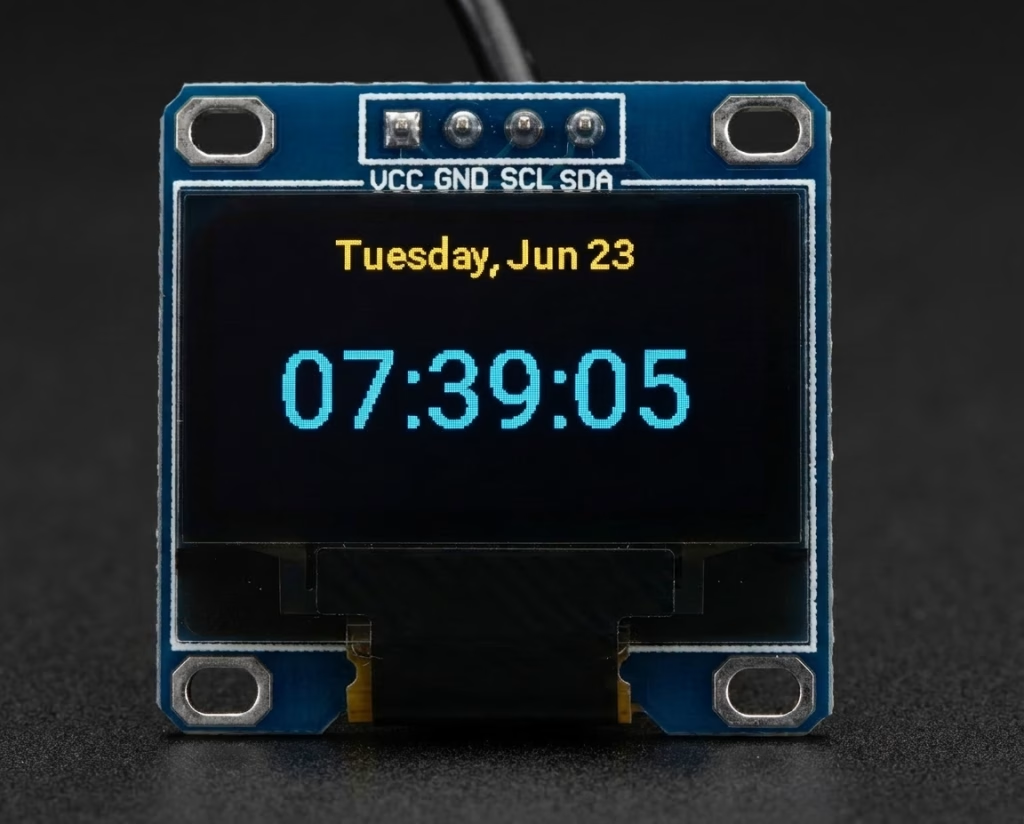
Pro-Tip: Why is my screen yellow and blue?
If you compile this and notice the top line of text is bright yellow and the bottom is blue, don’t panic! Your screen isn’t broken. Many cheap SSD1306 displays are physically manufactured as “dual-color” screens. They have a fixed strip of yellow pixels at the top and blue pixels on the bottom. The configuration code above takes advantage of this by placing a small date header perfectly inside the yellow strip, leaving the large time digits cleanly in the blue section.
Brilliant IoT Projects for Your New Display
Now that you know how to print text to the screen, you aren’t limited to just clocks. Because ESPHome integrates natively with Home Assistant, you can display any data your smart home tracks.
Here are a few project ideas to inspire your next build:
1. The Desktop Weather Station
Instead of checking your phone, pull your local weather provider’s data from Home Assistant. You can display the current outdoor temperature, humidity, and even use ESPHome’s built-in glyph symbols to show a little raincloud or sun icon depending on the state.
2. Home Energy Monitor
Do you have a smart home energy monitor (like an emporia Vue or a simple smart plug on your computer)? You can stream your live home power usage directly to the display. Watch the numbers spike in real-time when the microwave turns on!
3. Air Quality Indicator
Pair your ESP32 with a cheap particulate matter sensor (like a PMS5003) or a CO2 sensor. You can code the display to show the current indoor air quality index, giving you a physical reminder of exactly when you need to crack open a window.
4. “Next Bus / Train” Commute Tracker
Using Home Assistant’s transit integrations, you can track public transportation arrival times. Mount your display right by the front door so you can see a live countdown of exactly how many minutes you have left before your bus pulls up to the stop.
Conclusion
The SSD1306 is an absolute staple of the DIY IoT world for a reason. For less than R70, it turns a blind microcontroller into an interactive, informative smart home hub.
What are you planning to display on your screen? Let me know in the comments below!
Leave a Reply